How to run a class spelling bee, step by step
The bee shows on your classroom's big screen, and you run it from your phone. This guide walks through a whole bee with a picture of every step, from typing the names to the champion.
What you need
- A screen the class can see, with a web browser and speakers: a smartboard, interactive whiteboard, TV or projector.
- A phone, tablet or laptop to run the bee from.
- No account. Setting up takes about two minutes.
- Optional: mini whiteboards and pens, so the whole class writes along.
Part 1 · Set up the bee on your phone
Step 1: Type your spellers
Open spellcrush.fun/class-bee on your phone, tablet or laptop. Type or paste your spellers' first names, one per line or separated by commas. First names are best: they go on the big screen.
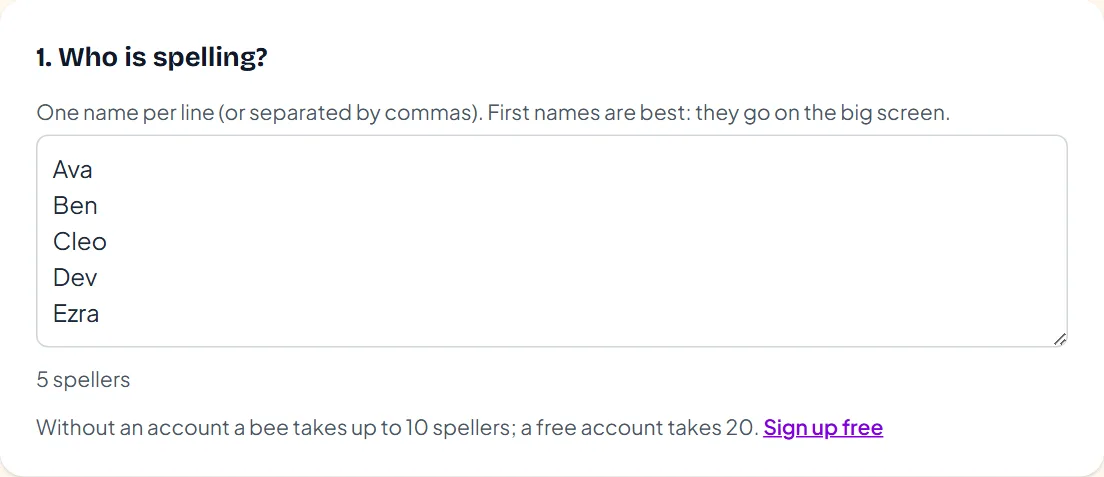
Without an account a bee takes up to 10 spellers, and a free account takes 20. With Premium (40 spellers) you can load your children instead of typing, and a tutor (80 spellers) can load a whole class. Untick anyone who is away today.
Step 2: Choose the kind of bee
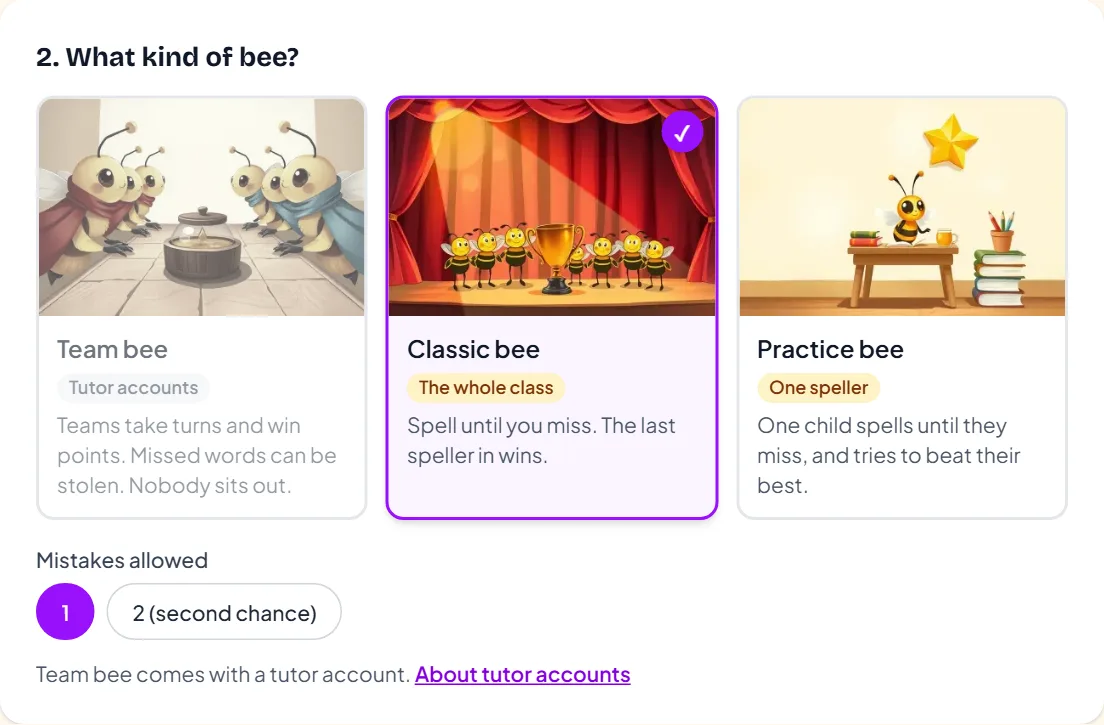
- Classic bee, for the whole class: spell until you miss, and the last speller in wins. Allow 1 mistake, or 2 for a second chance.
- Team bee, with a tutor account: 2 to 4 teams take turns and win points, a missed word can be stolen, and nobody sits out.
- Practice bee, for one speller: one child spells until they miss and tries to beat their best.
The full rules are on the class spelling bee page.
Step 3: Pick the spelling words
Choose a year or grade, then pick a ready-made list. There are lists from kindergarten to 12th grade, Reception to Year 6 for UK classes, Australian year groups, and sight words. Picking a list adds it straight away, and the setup tells you how many rounds the words will last for your number of spellers.
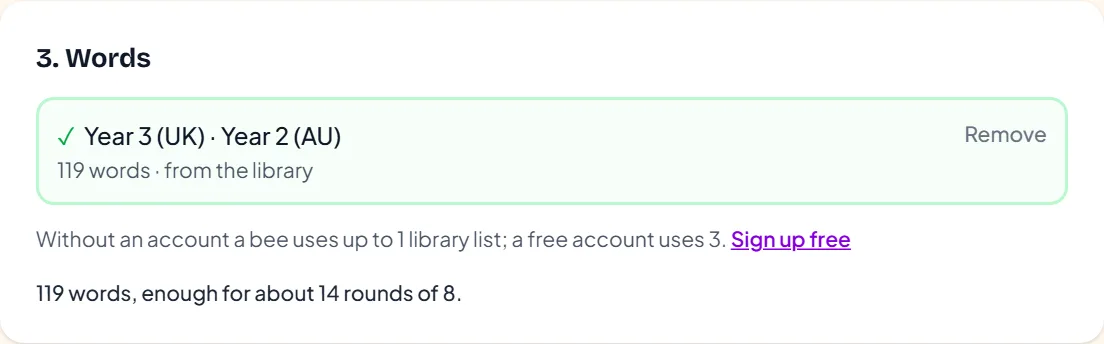
Need more words? Tap + Add another list. A free account can use 3 library lists in one bee, and can make each round harder: round 1 uses the first list, round 2 the next. With Premium you can also type your own spelling words (up to 100) or use the lists you've saved.
Step 4: Set the options and start
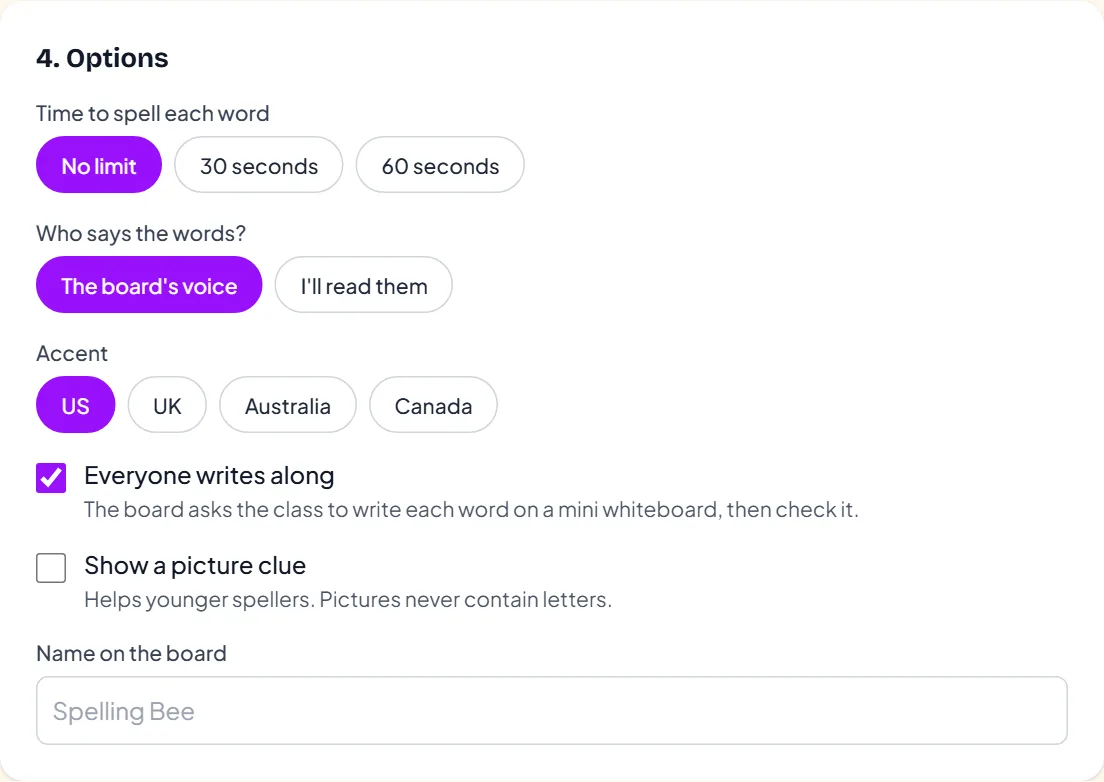
- Time to spell each word: no limit, 30 seconds or 60 seconds.
- Who says the words: the board's voice, in a US, UK, Australian or Canadian accent, or you read them yourself.
- Everyone writes along: the board asks the class to write each word on a mini whiteboard, then check it.
- Picture clue: helps younger spellers. Pictures never contain letters.
- Name on the board: your class name, shown in the corner.
Press Start the bee. The next screen tells you how many words have a recorded voice and links to the word sheet: every word in the order it will be asked, with its meaning and sentence. Print it as a backup.
Part 2 · Connect the classroom screen
Step 5: Put the bee on the big screen
On the smartboard, TV or projector, open spellcrush.fun/board. There is no login on the board. It shows a six-letter code and a QR code.
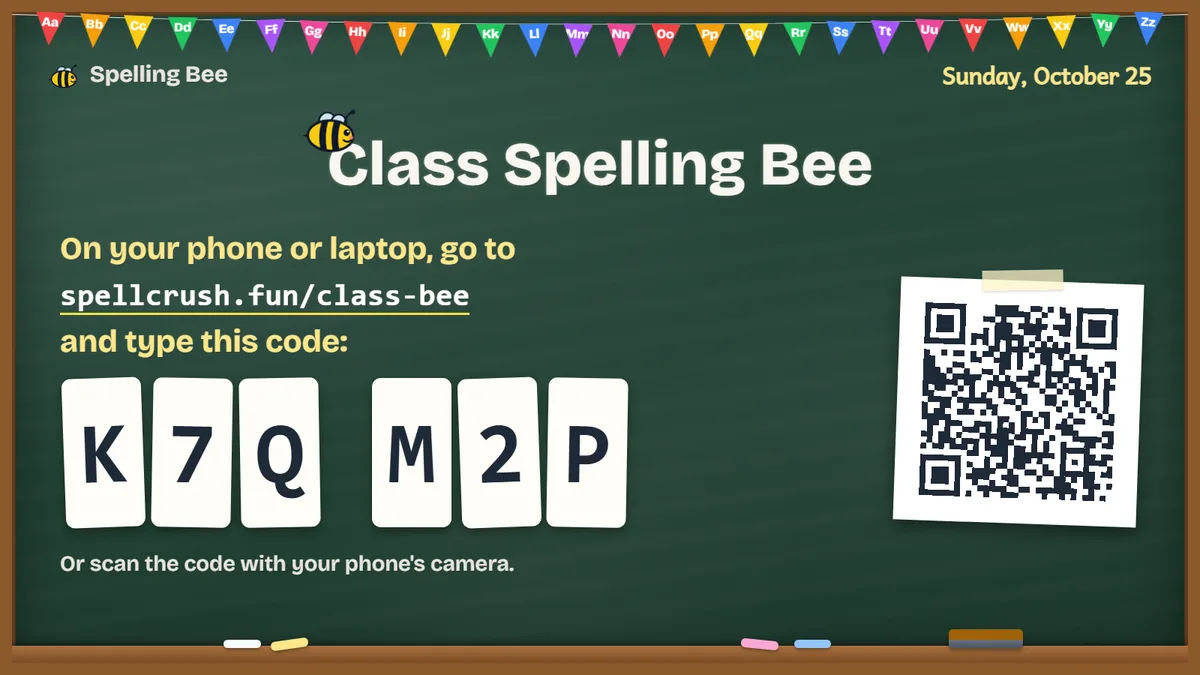
On your phone, type the code under Connect the big screen, or scan the QR code with your phone's camera. Then tap the board once: browsers only play sound after a tap.
No smartboard? Two other ways
- A laptop on the projector and your phone: run the bee on the laptop, then choose Use your phone as the remote from the ⋯ menu and scan the QR code once.
- Just one laptop: choose Use this laptop as the big screen from the ⋯ menu. The board runs there with a slim control strip, and the word is never on the screen. Read it from the printed word sheet.
Step 6: Open the waiting room
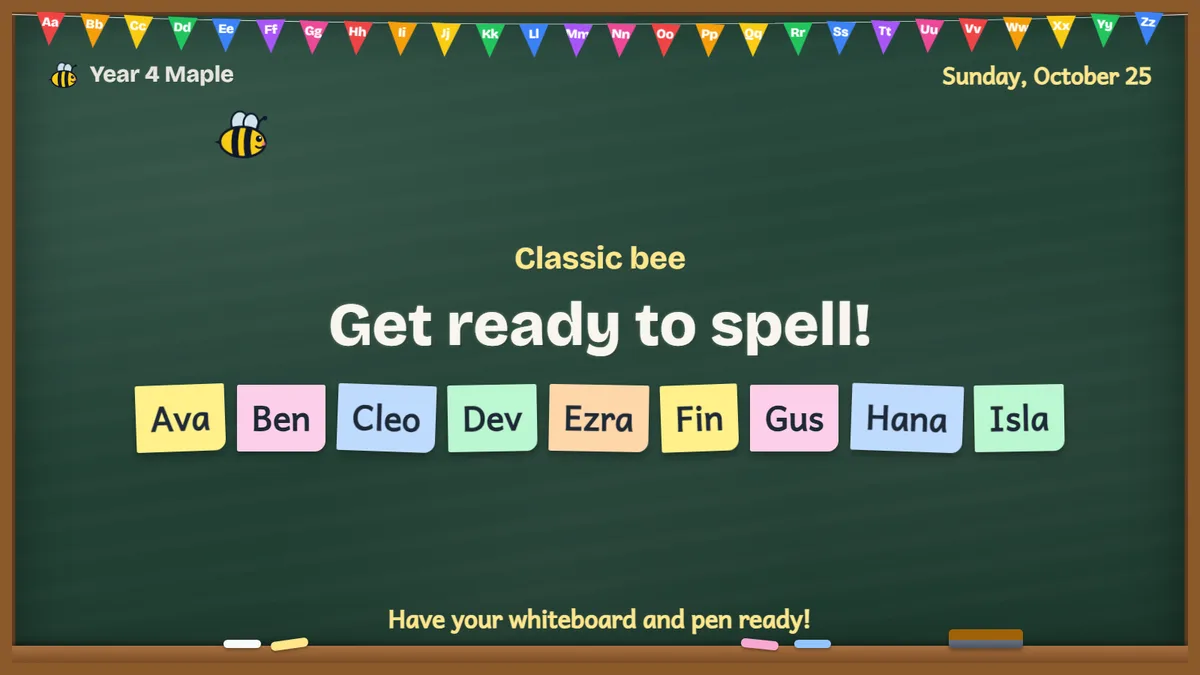
Tap Open the controls. The board shows every speller's name and asks the class to get their whiteboards and pens ready. When everyone is settled, tap Start the bee. The turn order is drawn at random and shown, so children know when they are up.
Part 3 · Run the bee from your phone
Step 7: Give each speller their word
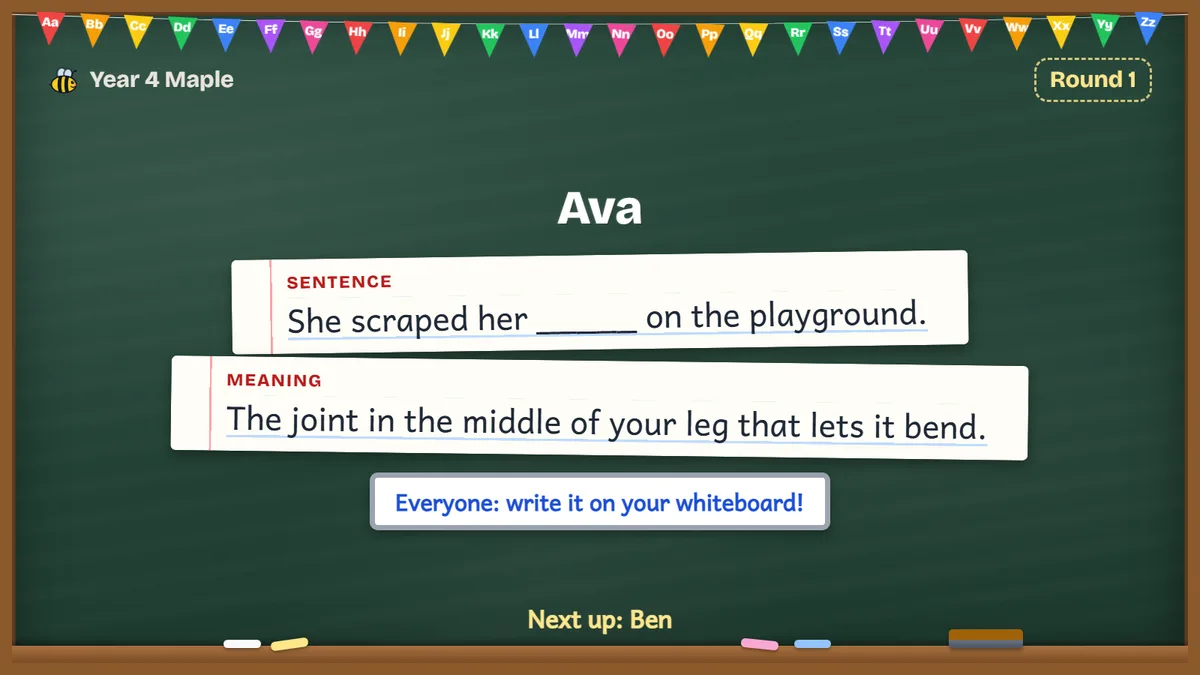
Tap Give the word. The board says the word, its meaning and a sentence. Your phone is the only place the word is shown before it is spelled: the board shows the speller's name, the sentence with the word blanked out, and its meaning.
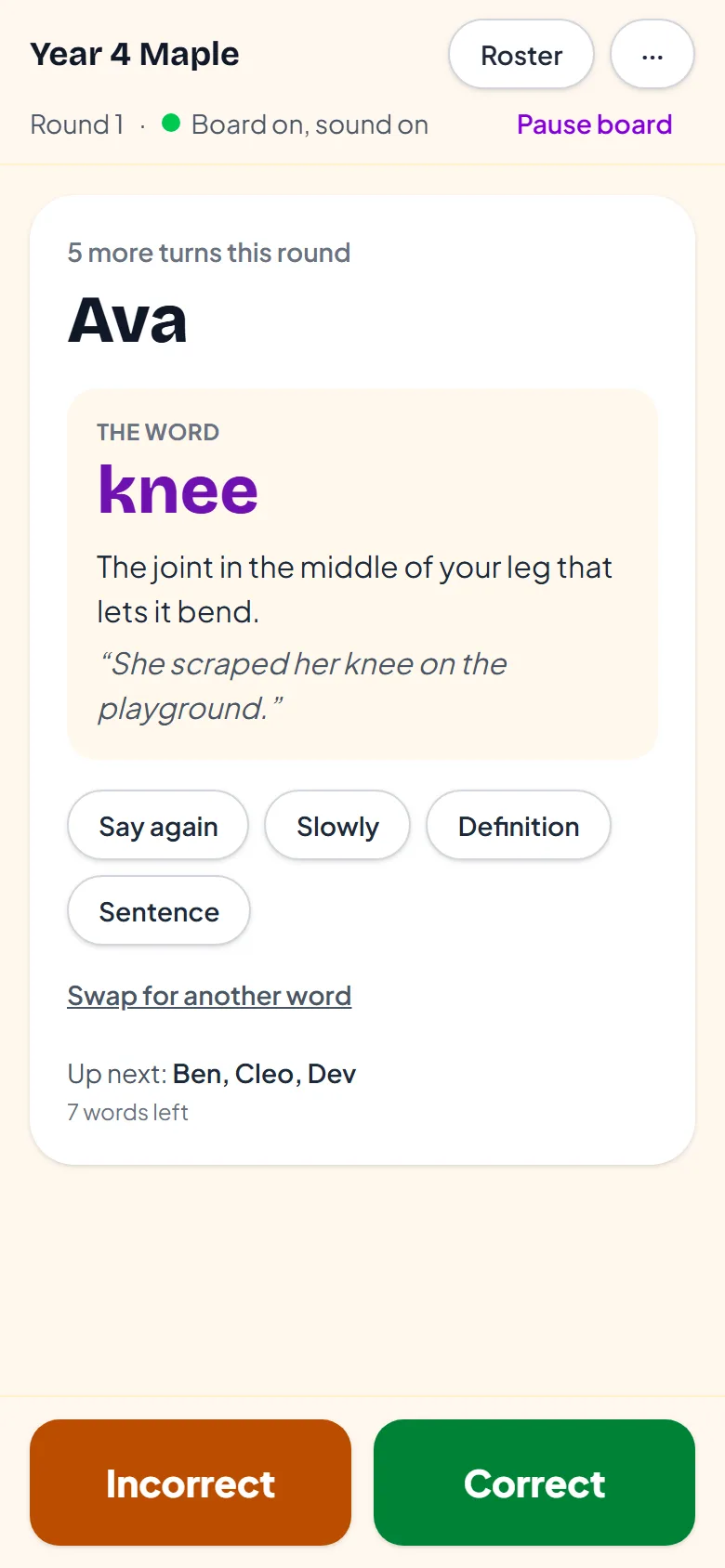
If the speller asks, tap Say again, Slowly, Definition or Sentence. If the word isn't right for them, Swap for another word.
Step 8: Mark the answer
When the child has spelled it out loud, tap Correct or Incorrect. The board shows the right spelling in letter tiles, so the class can check their whiteboards. A wrong tap? Undo stays on your phone for five seconds.
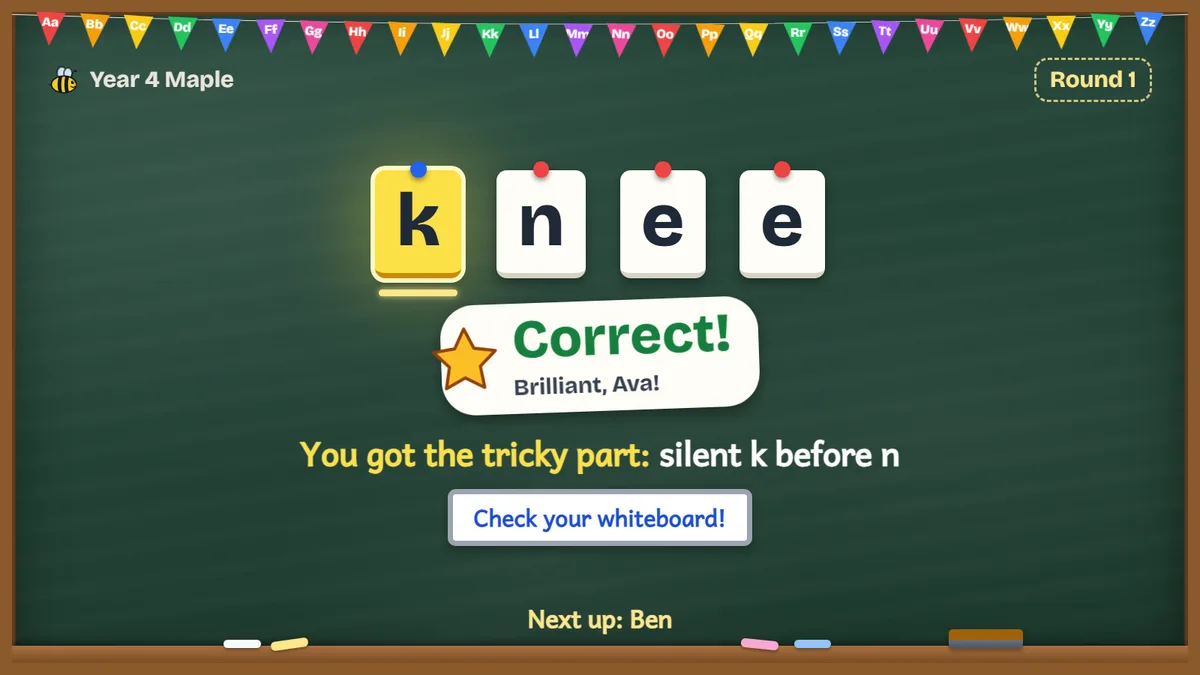
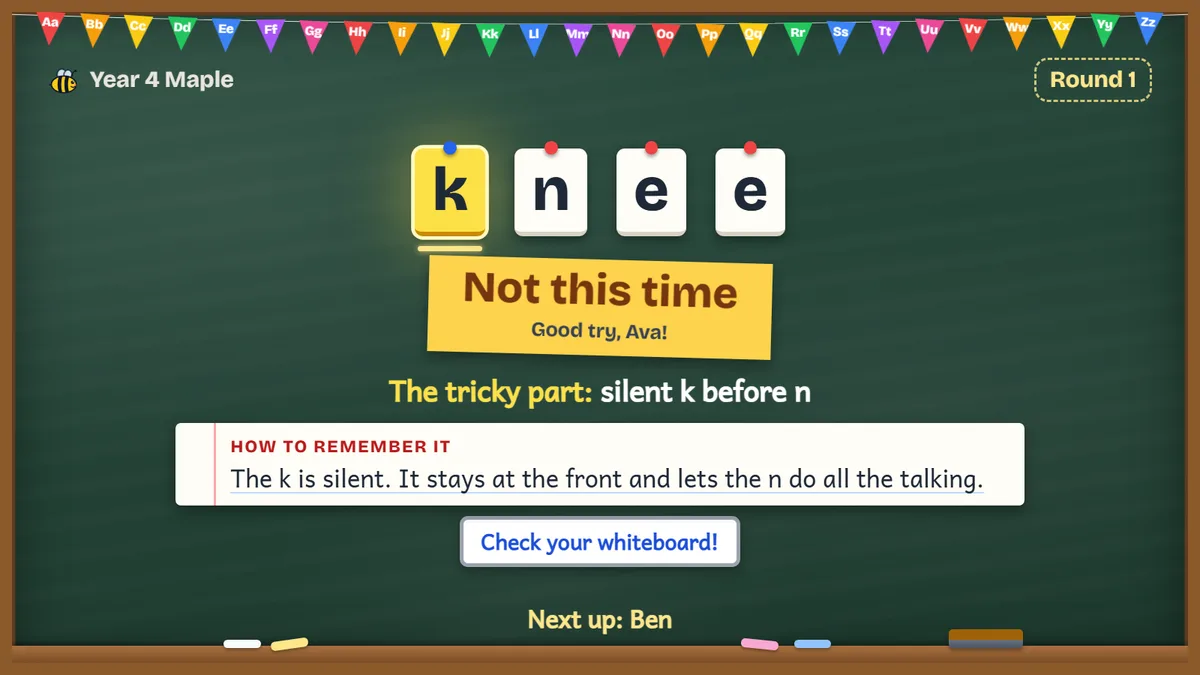
There are no buzzers and no red screens. A miss gets a soft bell, “Not this time” and the child's name with “good try”. Then tap Next speller.
Step 9: Rounds, teams and the champion
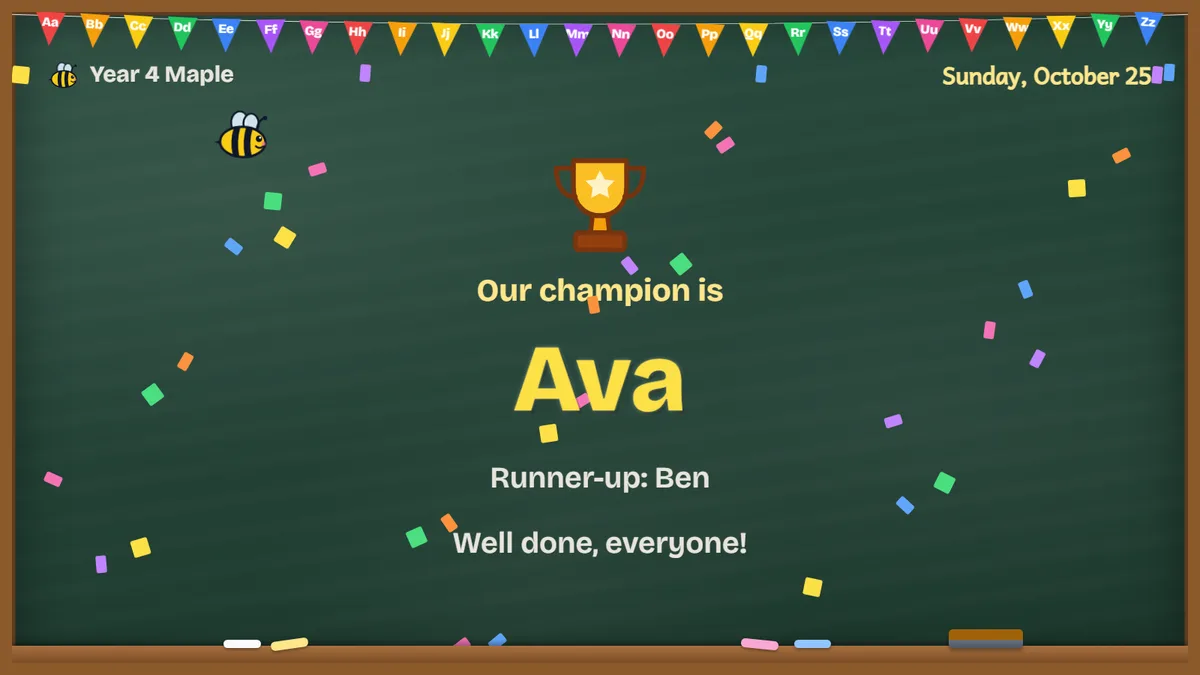
In a Classic bee, children who miss sit down at the end of the round and are thanked by name. If everyone left in a round misses, everyone stays in. The last speller must spell a championship word to win; if they miss it, the others from that round come back.
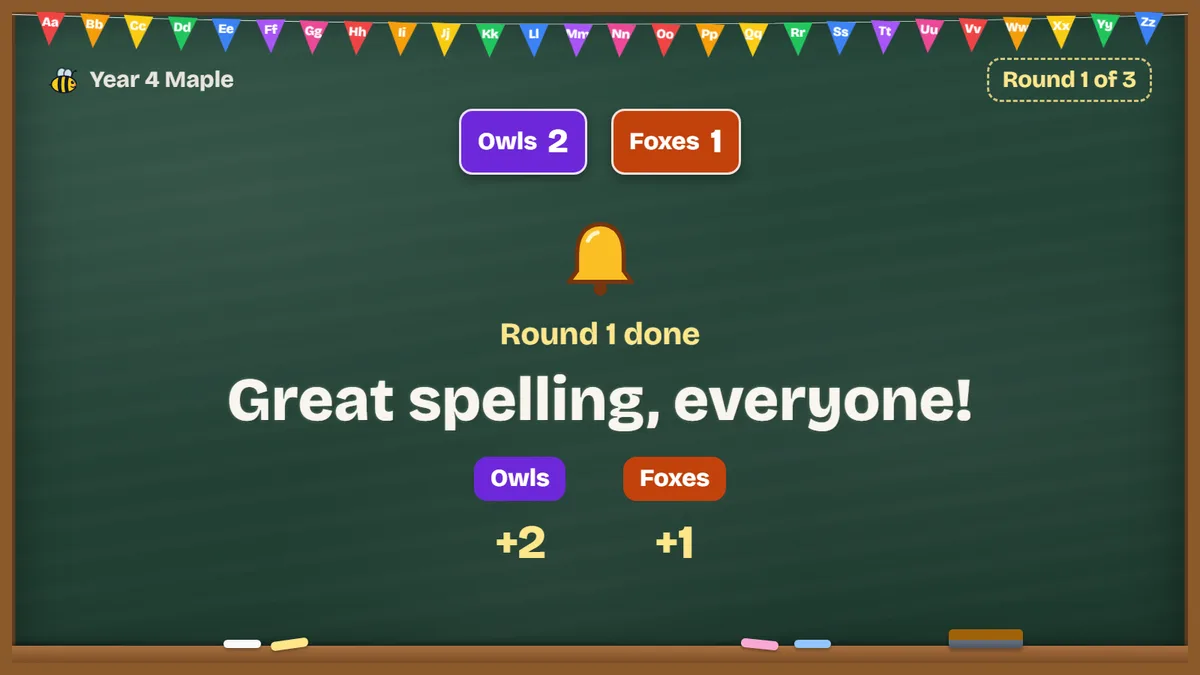
In a Team bee, each correct word scores a point and a missed word can be stolen by the next team. The board shows the scores after every round, and a tie is settled with one sudden-death word per team.
Step 10: After the bee
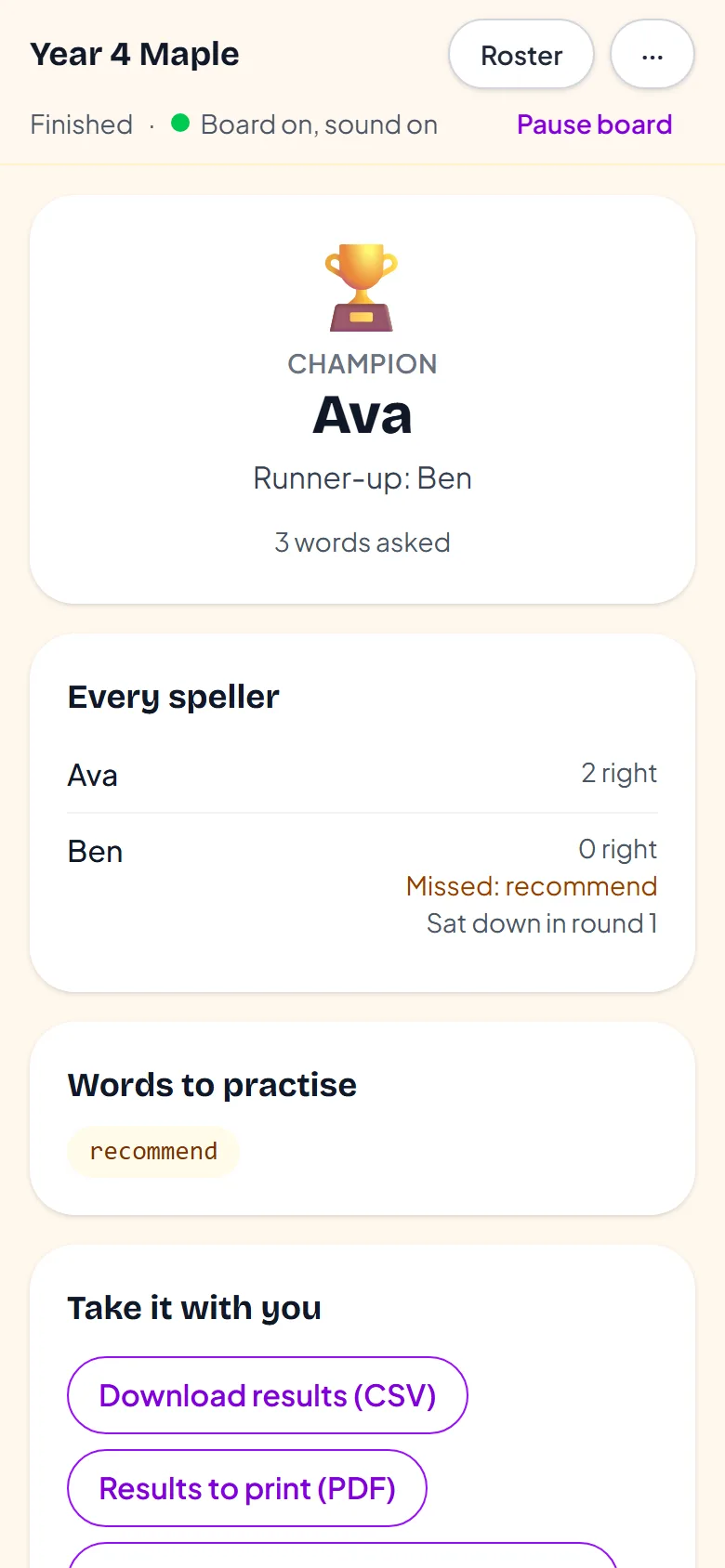
Your phone shows the results: the champion and runner-up, how many words each speller got right, and the words that were missed.
- For everyone: download the results as a spreadsheet (CSV) or a printable PDF.
- With Premium: a certificate for every speller, and the missed words saved to your Word Lists in one tap, to practise.
- For tutors: the missed-words list is also assigned to the class.
Your phone's controls at a glance
| Button | What it does |
|---|---|
| Give the word | The board says the word, its meaning and a sentence. |
| Say again · Slowly | The board says the word again, or slowly. |
| Definition · Sentence | The board reads the meaning or the sentence again. |
| Swap for another word | A different word for this speller, if the word isn't right for them. |
| Correct · Incorrect | Marks the answer. The board shows the spelling to the class. |
| Undo | Appears for five seconds after you mark an answer, for a wrong tap. |
| Next speller | Moves to the next child in the turn order. |
| Pause board | Hides the bee on the big screen, for a break or a question. |
| Roster | Who is still in, and moving a child to another team in a Team bee. |
| ⋯ menu | Phone remote, one-laptop mode, a different board, sound test and the word sheet. |
Running it from a laptop? Keyboard shortcuts
- N or → Next step
- C Correct
- X Incorrect
- R Say the word again
- L Say it slowly
- S Sentence
- D Definition
- U Undo
- P Pause the board
Ready to run your bee?
Free to start, with no sign-up. Set it up on your phone in about two minutes.